` at the location in your page where the payment form should render:
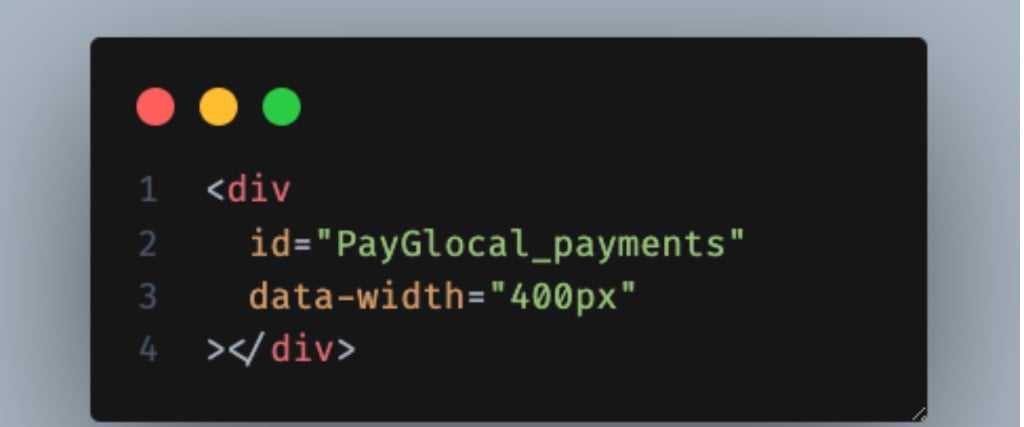
```html theme={null}
```
| Attribute | Required | Notes |
| ------------ | ------------- | ------------------------------------ |
| `id` | **Mandatory** | Must be exactly `PayGlocal_payments` |
| `data-width` | Optional | `350px`–`450px`. Default: `400px` |
Skip this step for `modal` and `drawer` modes.
***
## Step 4 — Launch the Payment Form
When the customer clicks your payment button, pass the `redirectUrl` from your backend to CodeDrop:
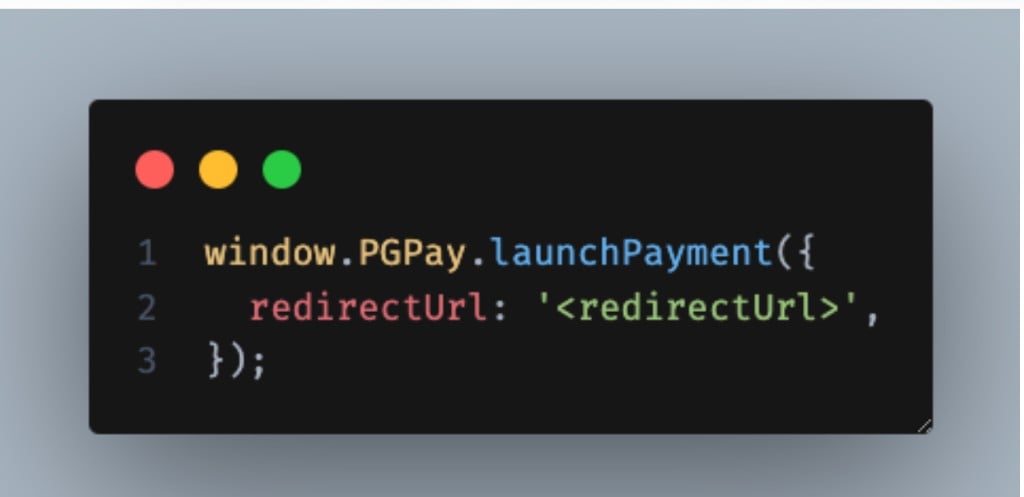
```javascript theme={null}
window.PGPay.launchPayment({
redirectUrl: '
'
});
```
**Full example** — fetching `redirectUrl` from your backend via axios, then launching CodeDrop:
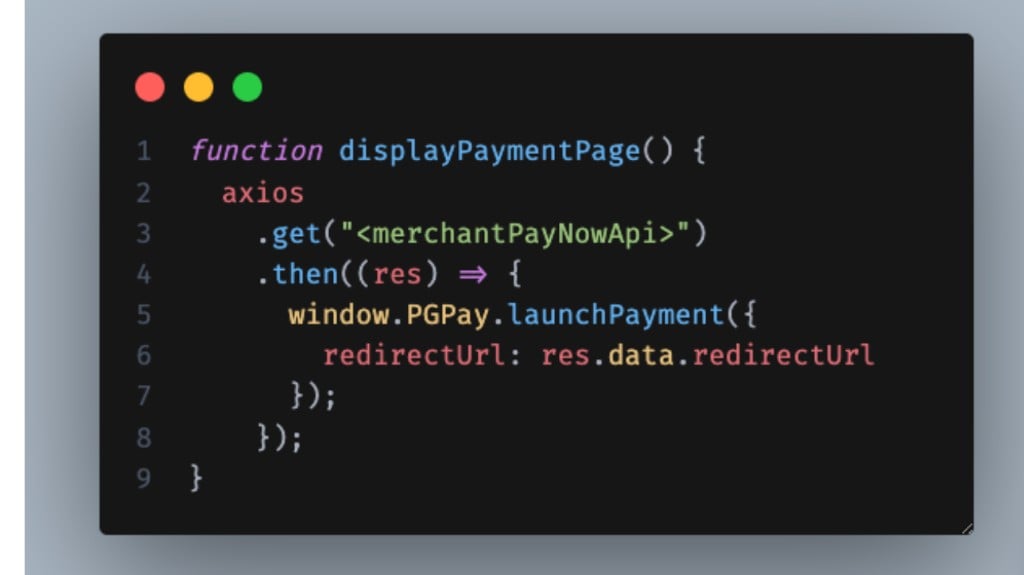 ```javascript theme={null}
function displayPaymentPage() {
axios
.get("")
.then((res) => {
window.PGPay.launchPayment({
redirectUrl: res.data.redirectUrl
});
});
}
```
Replace `` with your backend endpoint that returns the `redirectUrl`.
***
## Step 5 — Handle the Payment Callback
After the payment completes, is cancelled, or is abandoned, CodeDrop closes automatically and invokes your callback function. Pass it as the second argument to `launchPayment()`:
```javascript theme={null}
function displayPaymentPage() {
axios
.get("")
.then((res) => {
window.PGPay.launchPayment({
redirectUrl: res.data.redirectUrl
});
});
}
```
Replace `` with your backend endpoint that returns the `redirectUrl`.
***
## Step 5 — Handle the Payment Callback
After the payment completes, is cancelled, or is abandoned, CodeDrop closes automatically and invokes your callback function. Pass it as the second argument to `launchPayment()`:
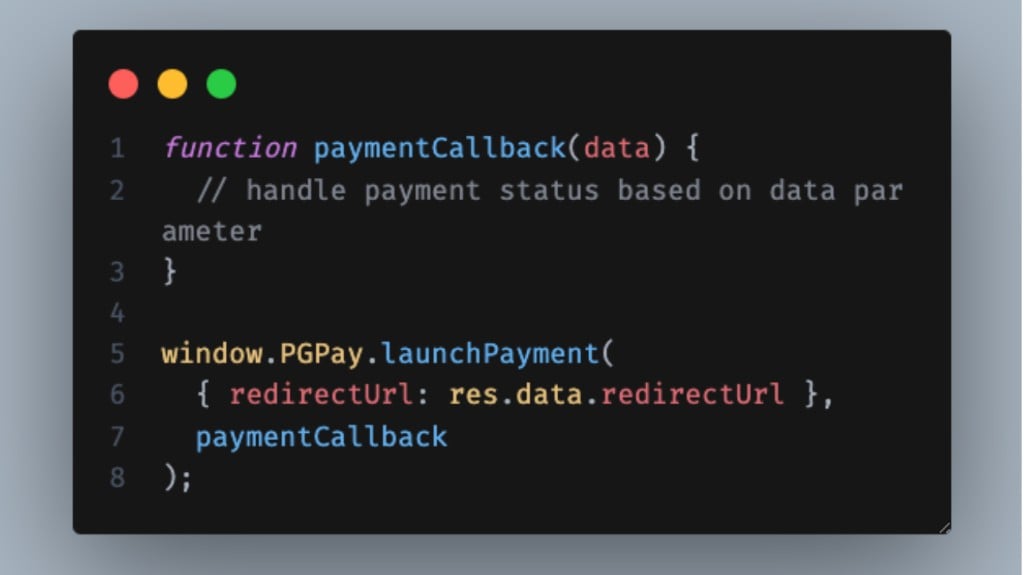 ```javascript theme={null}
function paymentCallback(data) {
// handle payment status based on data parameter
}
window.PGPay.launchPayment(
{ redirectUrl: res.data.redirectUrl },
paymentCallback
);
```
**The `data` object your callback receives:**
```javascript theme={null}
function paymentCallback(data) {
// handle payment status based on data parameter
}
window.PGPay.launchPayment(
{ redirectUrl: res.data.redirectUrl },
paymentCallback
);
```
**The `data` object your callback receives:**
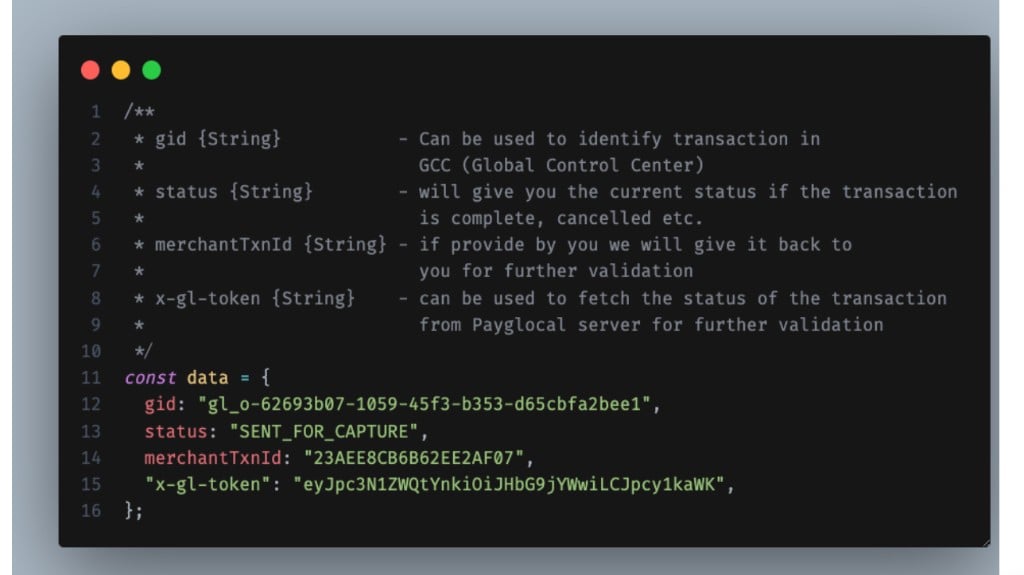 ```javascript theme={null}
const data = {
gid: "gl_o-62693b07-1059-45f3-b353-d65cbfa2bee1",
// Can be used to identify the transaction in GCC (Global Control Center)
status: "SENT_FOR_CAPTURE",
// Gives you the current status — complete, cancelled, abandoned, etc.
merchantTxnId: "23AEE8CB6B62EE2AF07",
// If provided by you in the original request, returned here for your validation
"x-gl-token": "eyJpc3N1ZWQtYnkiOiJHbG9jYWwiLCJpYXQiOiJ..."
// Can be used to fetch full transaction status from PayGlocal server
};
```
| Field | Type | Description |
| --------------- | ------ | ------------------------------------------------------------------------------------ |
| `gid` | String | PayGlocal transaction ID — use in GCC or Status Check API |
| `status` | String | Current payment status (`SENT_FOR_CAPTURE`, `CUSTOMER_CANCELLED`, `ABANDONED`, etc.) |
| `merchantTxnId` | String | Your transaction reference, echoed back for validation |
| `x-gl-token` | String | Token to fetch full status from PayGlocal |
***
## Step 6 — Custom Pay Now Action *(Inline mode only)*
If you hide the default PayNow button inside the inline form and use your own, wire your button's `onclick` to:
```javascript theme={null}
const data = {
gid: "gl_o-62693b07-1059-45f3-b353-d65cbfa2bee1",
// Can be used to identify the transaction in GCC (Global Control Center)
status: "SENT_FOR_CAPTURE",
// Gives you the current status — complete, cancelled, abandoned, etc.
merchantTxnId: "23AEE8CB6B62EE2AF07",
// If provided by you in the original request, returned here for your validation
"x-gl-token": "eyJpc3N1ZWQtYnkiOiJHbG9jYWwiLCJpYXQiOiJ..."
// Can be used to fetch full transaction status from PayGlocal server
};
```
| Field | Type | Description |
| --------------- | ------ | ------------------------------------------------------------------------------------ |
| `gid` | String | PayGlocal transaction ID — use in GCC or Status Check API |
| `status` | String | Current payment status (`SENT_FOR_CAPTURE`, `CUSTOMER_CANCELLED`, `ABANDONED`, etc.) |
| `merchantTxnId` | String | Your transaction reference, echoed back for validation |
| `x-gl-token` | String | Token to fetch full status from PayGlocal |
***
## Step 6 — Custom Pay Now Action *(Inline mode only)*
If you hide the default PayNow button inside the inline form and use your own, wire your button's `onclick` to:
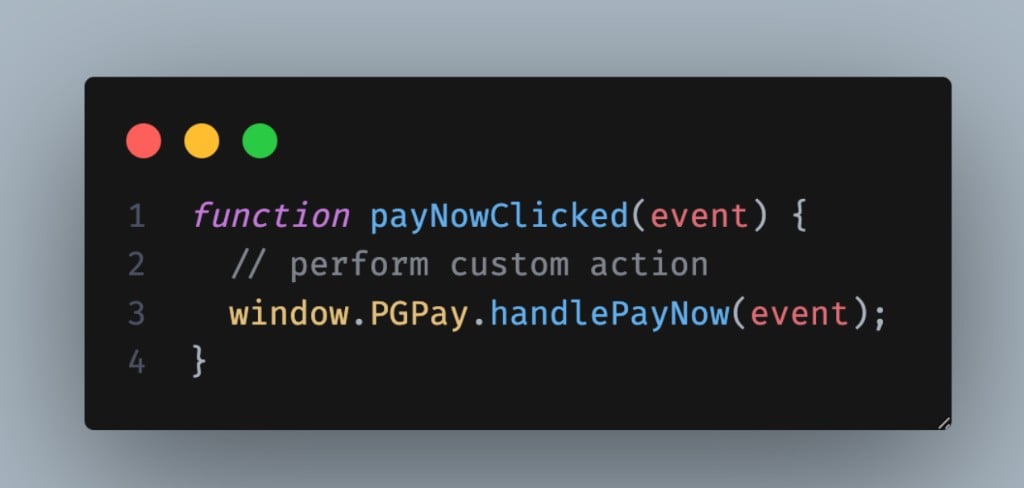 ```javascript theme={null}
function payNowClicked(event) {
// perform custom action
window.PGPay.handlePayNow(event);
}
```
The `event` parameter is the `onclick` event of your PayNow button element and is **mandatory**.
***
## Step 7 — Pass Updated Billing & Shipping Details *(Inline mode only)*
If your billing and shipping forms are on the same page as the inline payment widget, the customer might update their address after the widget has already loaded. Use this to push updated details to the payment form in real time:
```javascript theme={null}
function payNowClicked(event) {
// perform custom action
window.PGPay.handlePayNow(event);
}
```
The `event` parameter is the `onclick` event of your PayNow button element and is **mandatory**.
***
## Step 7 — Pass Updated Billing & Shipping Details *(Inline mode only)*
If your billing and shipping forms are on the same page as the inline payment widget, the customer might update their address after the widget has already loaded. Use this to push updated details to the payment form in real time:
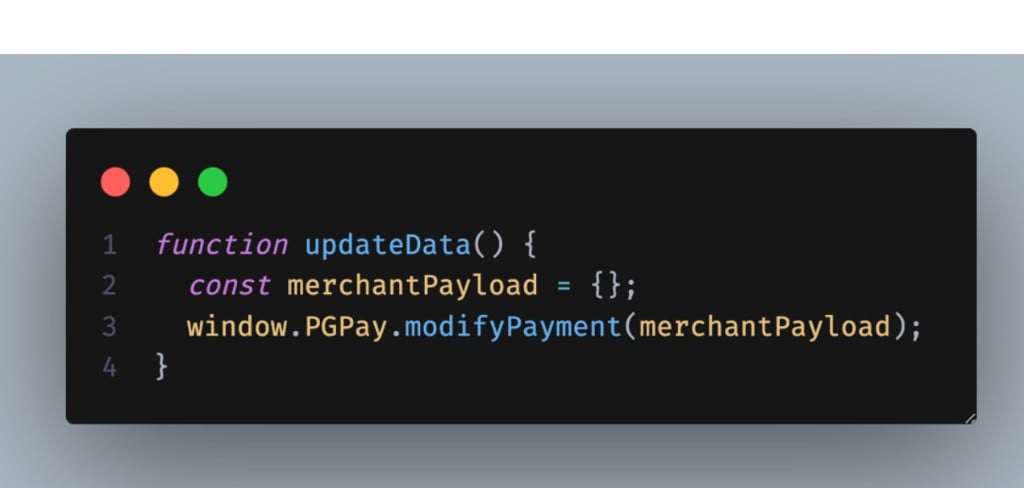 ```javascript theme={null}
function updateData() {
const merchantPayload = {};
window.PGPay.modifyPayment(merchantPayload);
}
```
**`merchantPayload` format:**
```javascript theme={null}
function updateData() {
const merchantPayload = {};
window.PGPay.modifyPayment(merchantPayload);
}
```
**`merchantPayload` format:**
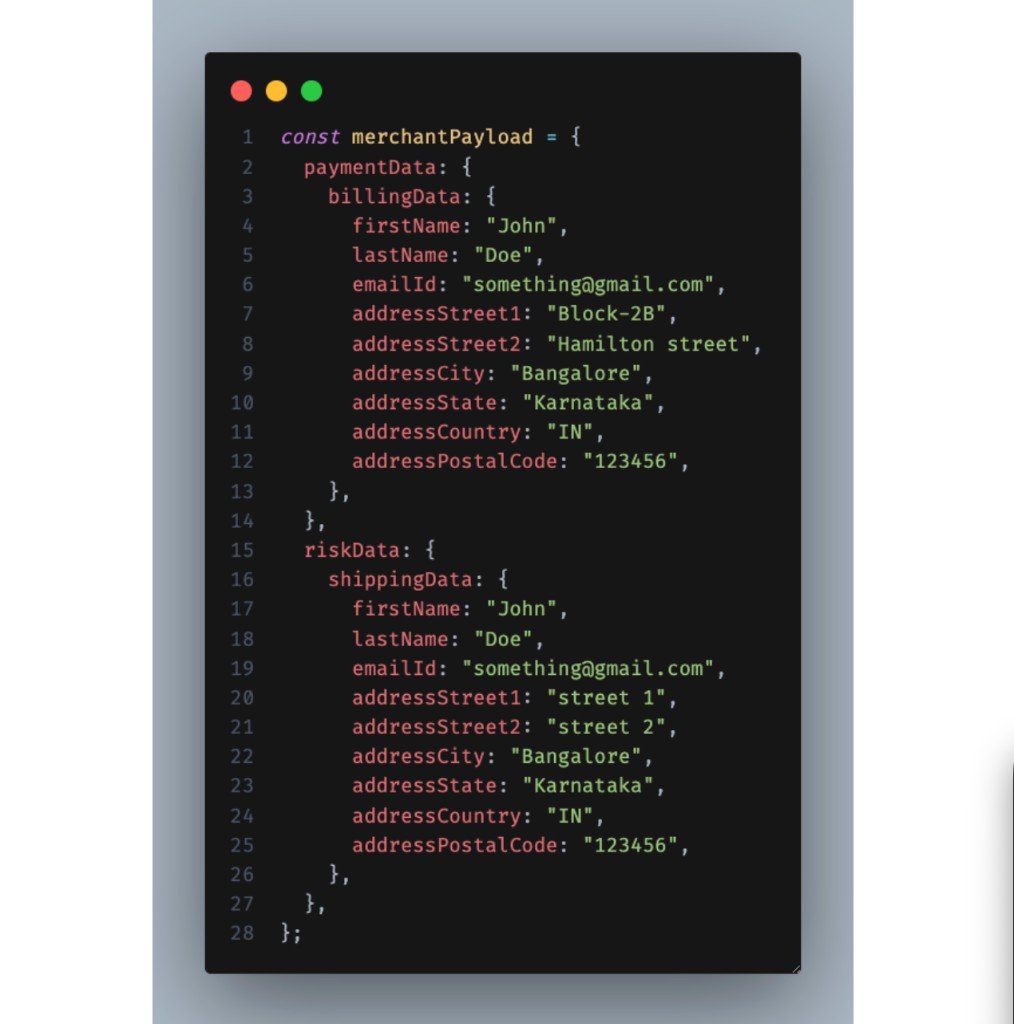 ```javascript theme={null}
const merchantPayload = {
paymentData: {
billingData: {
firstName: "John",
lastName: "Doe",
emailId: "something@gmail.com",
addressStreet1: "Block-2B",
addressStreet2: "Hamilton street",
addressCity: "Bangalore",
addressState: "Karnataka",
addressCountry: "IN",
addressPostalCode: "123456"
}
},
riskData: {
shippingData: {
firstName: "John",
lastName: "Doe",
emailId: "something@gmail.com",
addressStreet1: "street 1",
addressStreet2: "street 2",
addressCity: "Bangalore",
addressState: "Karnataka",
addressCountry: "IN",
addressPostalCode: "123456"
}
}
};
```
**Rules:**
* You can send `billingData`, `shippingData`, or both — any fields you omit are left unchanged
* Data entered directly by the customer on the payment form always takes highest priority — if the customer typed something, it overrides what you send here
```javascript theme={null}
const merchantPayload = {
paymentData: {
billingData: {
firstName: "John",
lastName: "Doe",
emailId: "something@gmail.com",
addressStreet1: "Block-2B",
addressStreet2: "Hamilton street",
addressCity: "Bangalore",
addressState: "Karnataka",
addressCountry: "IN",
addressPostalCode: "123456"
}
},
riskData: {
shippingData: {
firstName: "John",
lastName: "Doe",
emailId: "something@gmail.com",
addressStreet1: "street 1",
addressStreet2: "street 2",
addressCity: "Bangalore",
addressState: "Karnataka",
addressCountry: "IN",
addressPostalCode: "123456"
}
}
};
```
**Rules:**
* You can send `billingData`, `shippingData`, or both — any fields you omit are left unchanged
* Data entered directly by the customer on the payment form always takes highest priority — if the customer typed something, it overrides what you send here
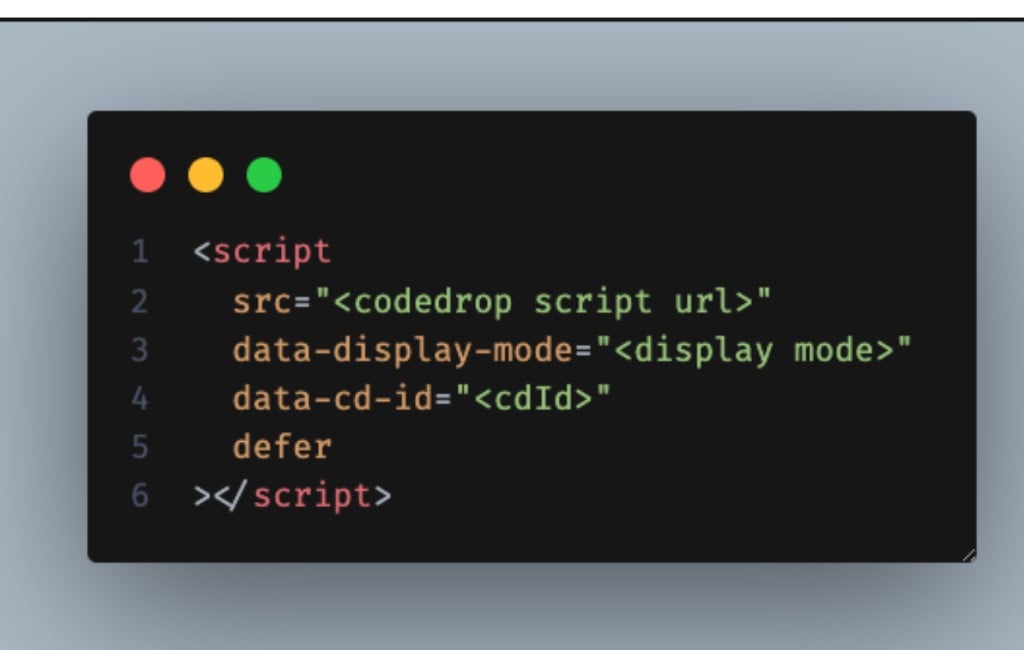 **Parameters:**
| Attribute | Required | Description |
| ------------------- | -------- | --------------------------------------- |
| `src` | Yes | CodeDrop script URL (UAT or Production) |
| `data-display-mode` | Yes | `drawer` / `modal` / `inline` |
| `data-cd-id` | Yes | Your `cdId` from PayGlocal |
| `defer` | Yes | Load script after HTML parsing |
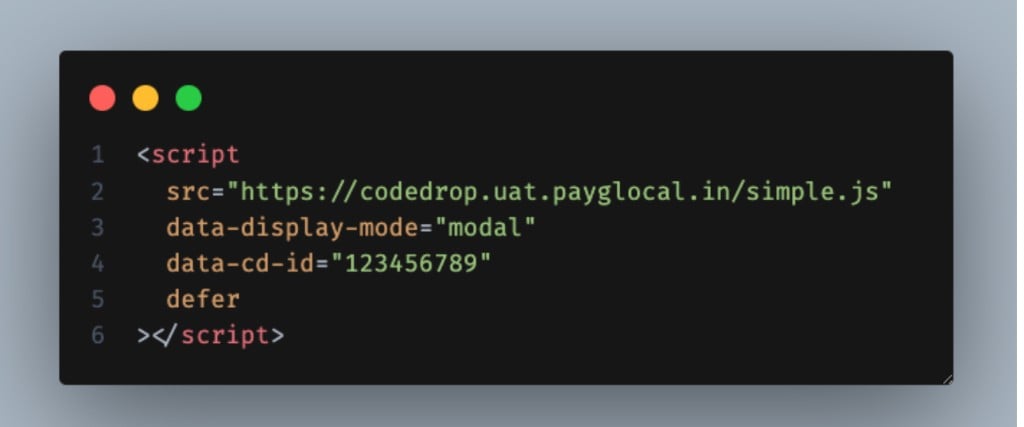
**Script URLs:**
| Environment | URL |
| ----------- | --------------------------------------------- |
| UAT | `https://codedrop.uat.payglocal.in/simple.js` |
| Production | `https://codedrop.payglocal.in/simple.js` |
**Example** — modal mode, UAT environment, cdId `123456789`:
**Parameters:**
| Attribute | Required | Description |
| ------------------- | -------- | --------------------------------------- |
| `src` | Yes | CodeDrop script URL (UAT or Production) |
| `data-display-mode` | Yes | `drawer` / `modal` / `inline` |
| `data-cd-id` | Yes | Your `cdId` from PayGlocal |
| `defer` | Yes | Load script after HTML parsing |
**Script URLs:**
| Environment | URL |
| ----------- | --------------------------------------------- |
| UAT | `https://codedrop.uat.payglocal.in/simple.js` |
| Production | `https://codedrop.payglocal.in/simple.js` |
**Example** — modal mode, UAT environment, cdId `123456789`:
 ```html theme={null}
```
***
## Step 3 — Add Payment Container *(Inline mode only)*
For `inline` display mode, place this container `
```html theme={null}
```
***
## Step 3 — Add Payment Container *(Inline mode only)*
For `inline` display mode, place this container `