Documentation Index

Fetch the complete documentation index at: https://payglocal.mintlify.app/llms.txt

Use this file to discover all available pages before exploring further.

CodeDrop embeds PayGlocal’s payment experience directly on your page. No redirect. The payment form opens as a popup (modal, drawer, or inline widget) and closes itself automatically when the payment is done. For a conceptual overview and step-by-step walkthrough, see CodeDrop in Getting Started.

Backend Implementation

Before your frontend can launch CodeDrop, your server must call PayGlocal’s Initiate Payment API and return the redirectUrl to your UI. CodeDrop will use this URL to load the payment form.

Step 1 — Enable CodeDrop for Your MID

Contact your PayGlocal account manager. The operations team will enable CodeDrop for your Merchant ID and provide a cdId — your CodeDrop configuration identifier.

Step 2 — Add the Script Tag

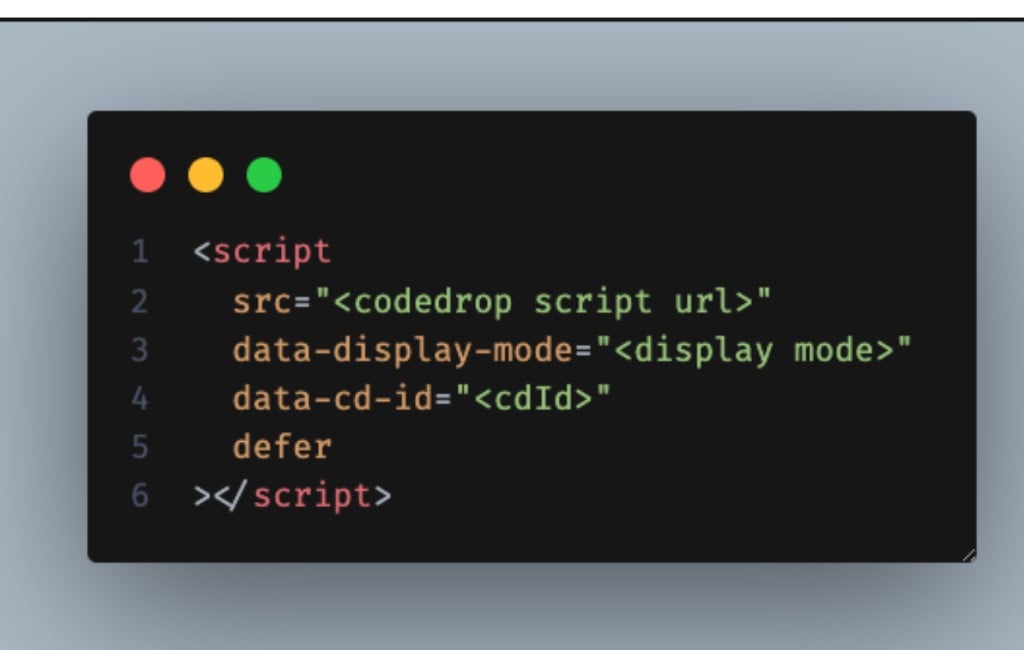
Add this script tag to your HTML <head> or at the end of <body>: CodeDrop script tag template Parameters:
AttributeRequiredDescription
srcYesCodeDrop script URL (UAT or Production)
data-display-modeYesdrawer / modal / inline
data-cd-idYesYour cdId from PayGlocal
deferYesLoad script after HTML parsing
Script URLs:
EnvironmentURL
UAThttps://codedrop.uat.payglocal.in/simple.js
Productionhttps://codedrop.payglocal.in/simple.js
Example — modal mode, UAT environment, cdId 123456789: CodeDrop script tag example for modal mode
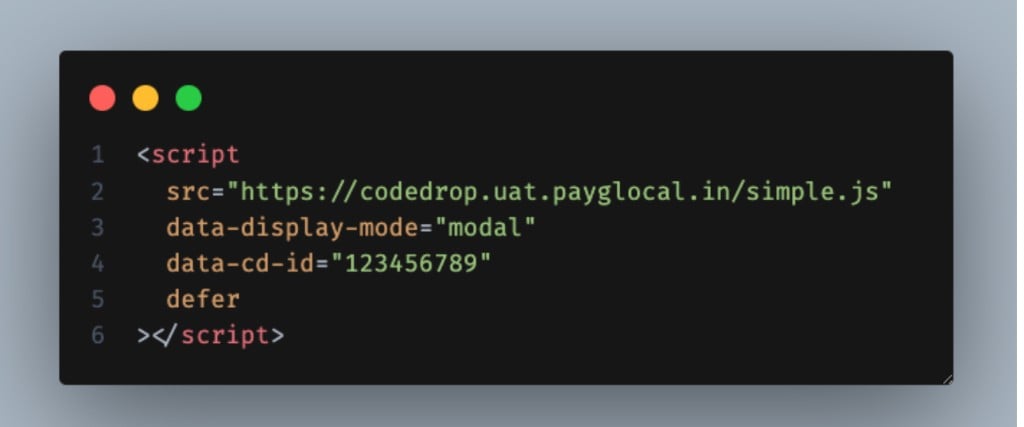
<script
  src="https://codedrop.uat.payglocal.in/simple.js"
  data-display-mode="modal"
  data-cd-id="123456789"
  defer
></script>

Step 3 — Add Payment Container (Inline mode only)

For inline display mode, place this container <div> at the location in your page where the payment form should render: Inline payment container div
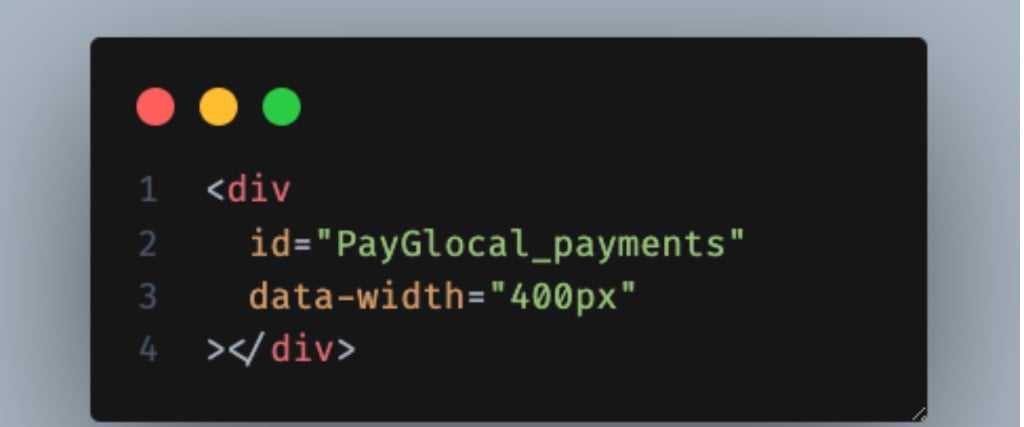
<div
  id="PayGlocal_payments"
  data-width="400px"
></div>
AttributeRequiredNotes
idMandatoryMust be exactly PayGlocal_payments
data-widthOptional350px450px. Default: 400px
Skip this step for modal and drawer modes.

Step 4 — Launch the Payment Form

When the customer clicks your payment button, pass the redirectUrl from your backend to CodeDrop: window.PGPay.launchPayment call
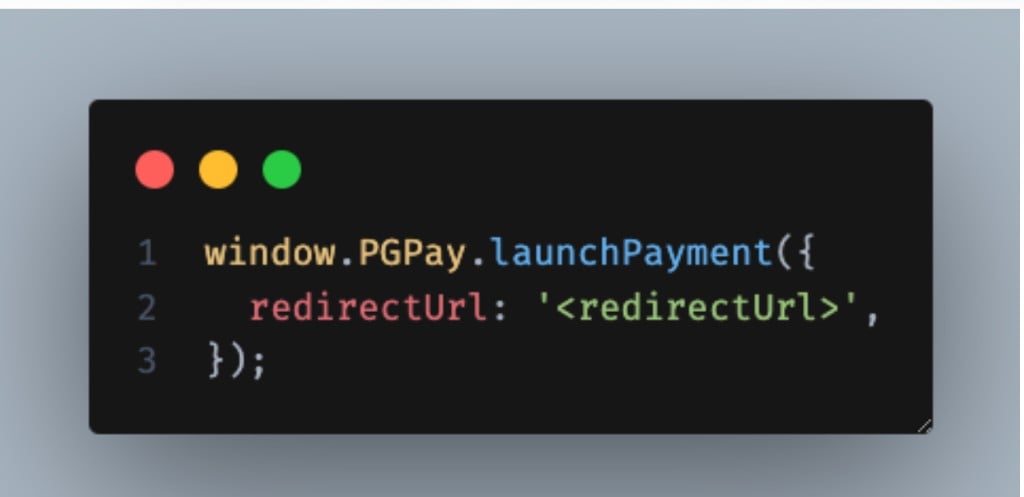
window.PGPay.launchPayment({
  redirectUrl: '<redirectUrl>'
});
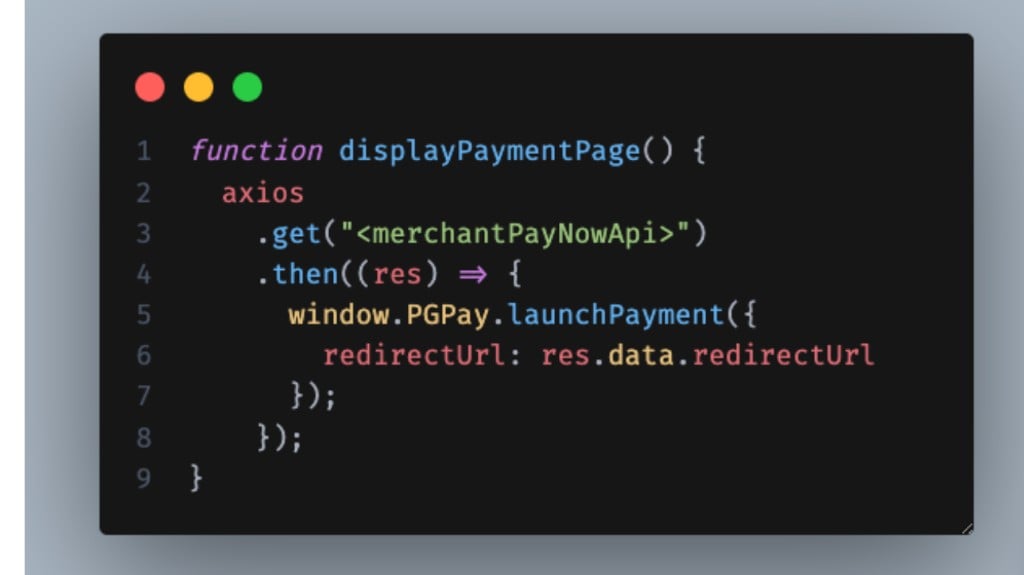
Full example — fetching redirectUrl from your backend via axios, then launching CodeDrop: displayPaymentPage function example
function displayPaymentPage() {
  axios
    .get("<merchantPayNowApi>")
    .then((res) => {
      window.PGPay.launchPayment({
        redirectUrl: res.data.redirectUrl
      });
    });
}
Replace <merchantPayNowApi> with your backend endpoint that returns the redirectUrl.

Step 5 — Handle the Payment Callback

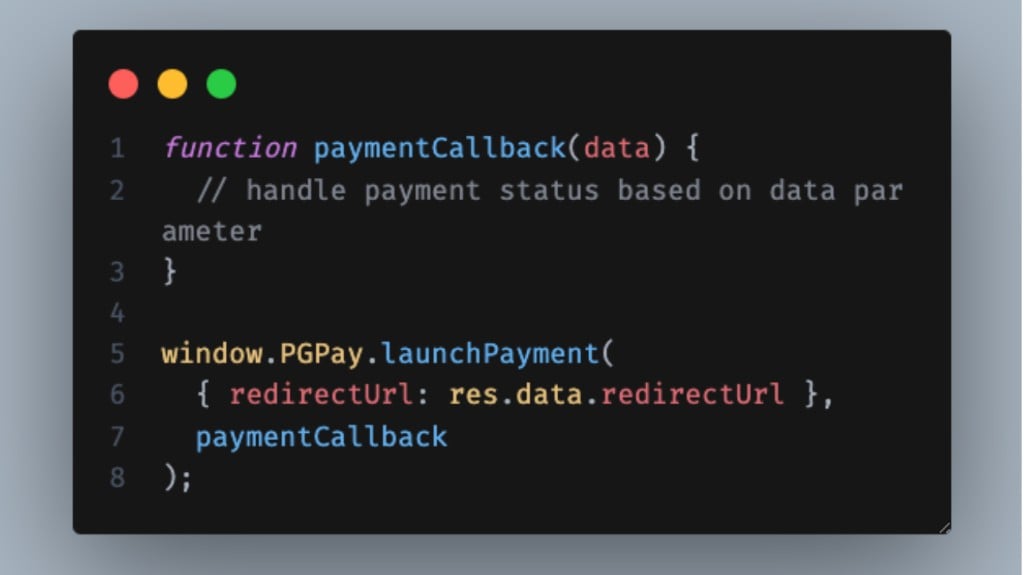
After the payment completes, is cancelled, or is abandoned, CodeDrop closes automatically and invokes your callback function. Pass it as the second argument to launchPayment(): paymentCallback function and launchPayment with callback
function paymentCallback(data) {
  // handle payment status based on data parameter
}

window.PGPay.launchPayment(
  { redirectUrl: res.data.redirectUrl },
  paymentCallback
);
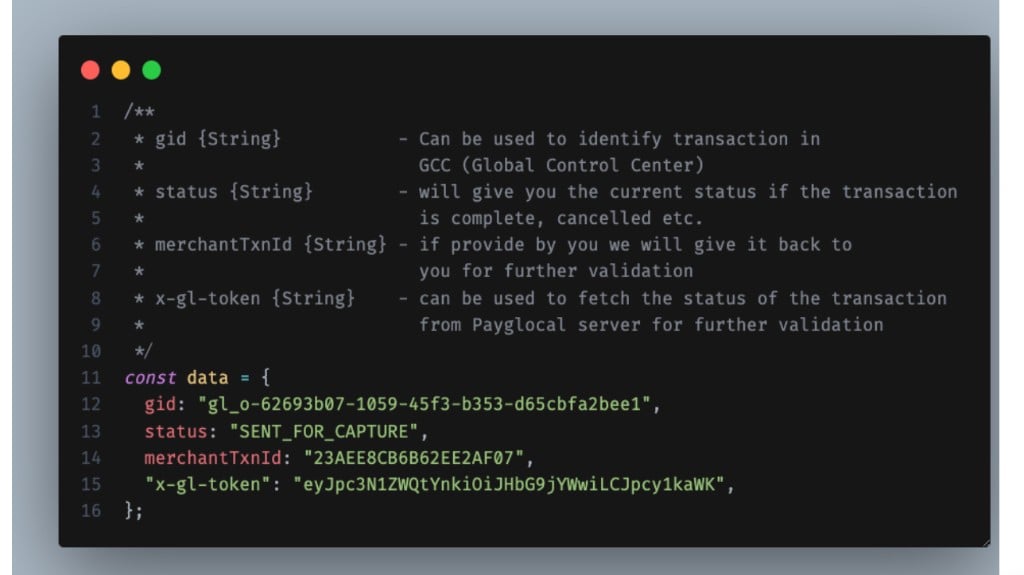
The data object your callback receives: Callback data object with gid, status, merchantTxnId, x-gl-token
const data = {
  gid: "gl_o-62693b07-1059-45f3-b353-d65cbfa2bee1",
  // Can be used to identify the transaction in GCC (Global Control Center)

  status: "SENT_FOR_CAPTURE",
  // Gives you the current status — complete, cancelled, abandoned, etc.

  merchantTxnId: "23AEE8CB6B62EE2AF07",
  // If provided by you in the original request, returned here for your validation

  "x-gl-token": "eyJpc3N1ZWQtYnkiOiJHbG9jYWwiLCJpYXQiOiJ..."
  // Can be used to fetch full transaction status from PayGlocal server
};
FieldTypeDescription
gidStringPayGlocal transaction ID — use in GCC or Status Check API
statusStringCurrent payment status (SENT_FOR_CAPTURE, CUSTOMER_CANCELLED, ABANDONED, etc.)
merchantTxnIdStringYour transaction reference, echoed back for validation
x-gl-tokenStringToken to fetch full status from PayGlocal

Step 6 — Custom Pay Now Action (Inline mode only)

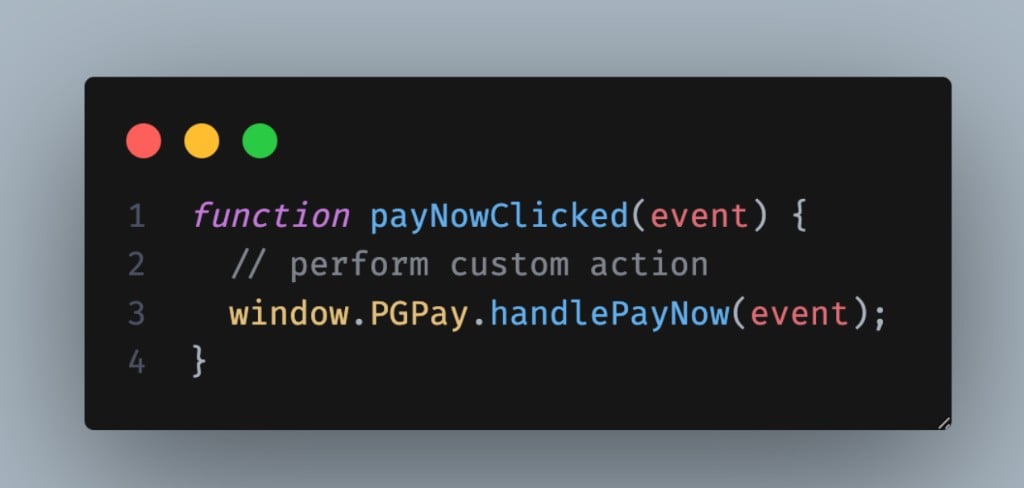
If you hide the default PayNow button inside the inline form and use your own, wire your button’s onclick to: payNowClicked function using window.PGPay.handlePayNow
function payNowClicked(event) {
  // perform custom action
  window.PGPay.handlePayNow(event);
}
The event parameter is the onclick event of your PayNow button element and is mandatory.

Step 7 — Pass Updated Billing & Shipping Details (Inline mode only)

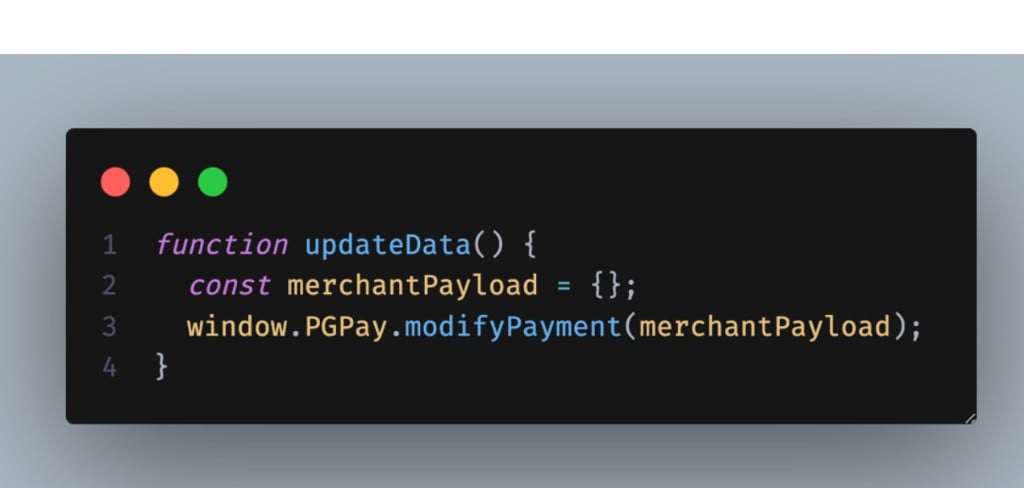
If your billing and shipping forms are on the same page as the inline payment widget, the customer might update their address after the widget has already loaded. Use this to push updated details to the payment form in real time: updateData function using window.PGPay.modifyPayment
function updateData() {
  const merchantPayload = {};
  window.PGPay.modifyPayment(merchantPayload);
}
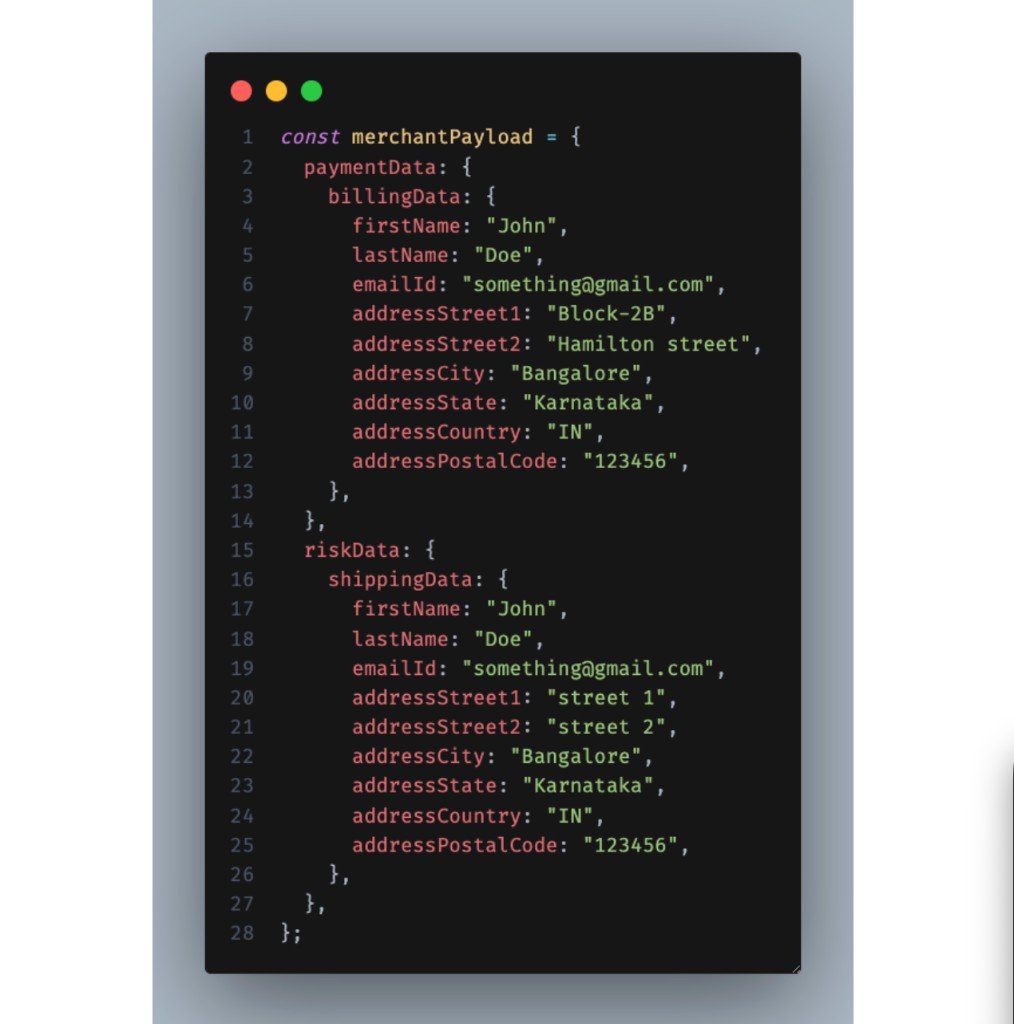
merchantPayload format: merchantPayload structure with billingData and shippingData
const merchantPayload = {
  paymentData: {
    billingData: {
      firstName: "John",
      lastName: "Doe",
      emailId: "[email protected]",
      addressStreet1: "Block-2B",
      addressStreet2: "Hamilton street",
      addressCity: "Bangalore",
      addressState: "Karnataka",
      addressCountry: "IN",
      addressPostalCode: "123456"
    }
  },
  riskData: {
    shippingData: {
      firstName: "John",
      lastName: "Doe",
      emailId: "[email protected]",
      addressStreet1: "street 1",
      addressStreet2: "street 2",
      addressCity: "Bangalore",
      addressState: "Karnataka",
      addressCountry: "IN",
      addressPostalCode: "123456"
    }
  }
};
Rules:
  • You can send billingData, shippingData, or both — any fields you omit are left unchanged
  • Data entered directly by the customer on the payment form always takes highest priority — if the customer typed something, it overrides what you send here