

What is OpenCart?
OpenCart is an open-source and free eCommerce platform, which is easy to set up and is used by thousands of merchants around the world. The eCommerce platform features plenty of free themes and extensions that add more functionalities and features to the store.OpenCart with PayGlocal
Integrating PayGlocal with OpenCart enables online merchants to accept online payments through internet banking and debit/credit cards from customers. The extension makes it easier for merchants to accept payments through the PayGlocal payment gateway.Before following the steps below, ensure you have a PayGlocal merchant account. Contact us to create one.
Plugin Download
Download the extension based on your OpenCart and PHP version. If you are not able to see the download link for your version, kindly reach out to your account manager.Plugin Installation
1
Open Extension Installer
Log in to your OpenCart admin panel and go to Extensions → Extension Installer.
2
Upload the extension
Upload the extension file that was downloaded.
3
Continue after upload
Click the Continue button once the upload is completed.
4
Install the PayGlocal extension
Navigate to Extensions → Extensions, select Payments from the drop-down, and install the PayGlocal Payment Gateway extension.
Configuration
1
Navigate to PayGlocal settings
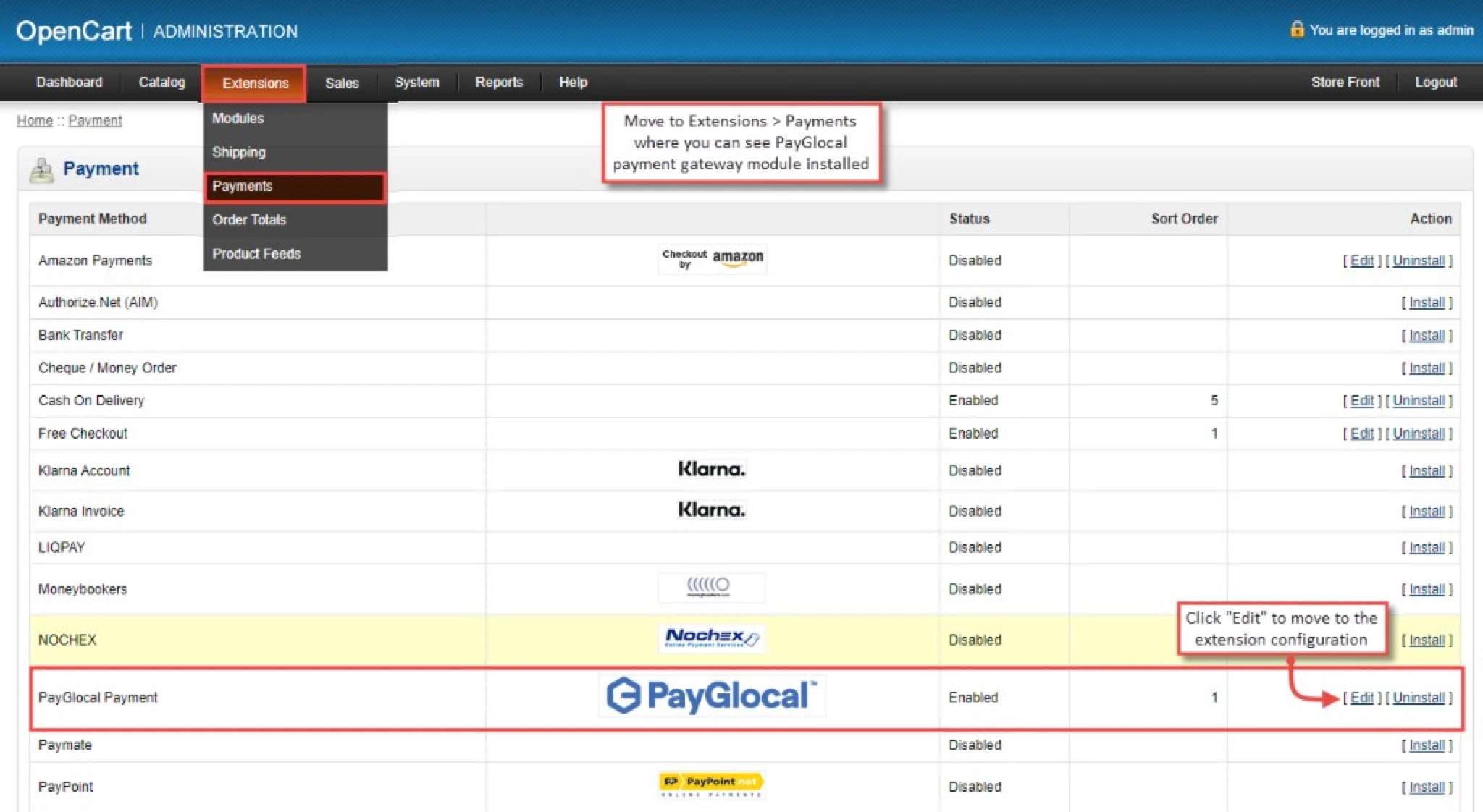
Log in to your OpenCart admin panel and navigate to Extensions → Extensions. Select Payments from the drop-down. Click the Edit option against the PayGlocal Payment Gateway to configure it.
1
Configure the extension fields
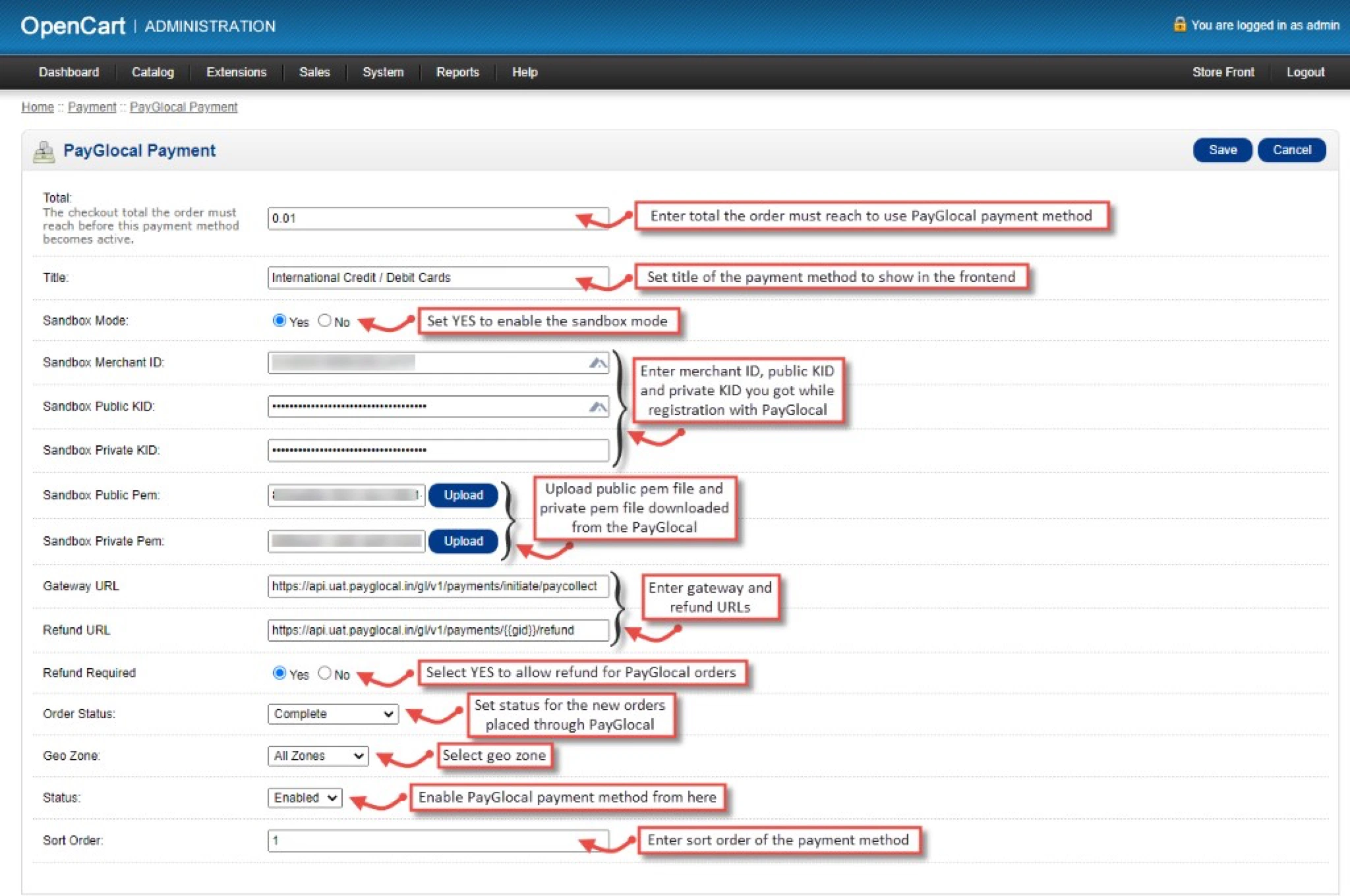
Configure the extension as described in the table below.
Field Reference
For details on fetching your Merchant ID, keys, and PEM files, refer to the Key Management section.
1
Save the configuration
Click the Save button at the top-right corner of the page.
Setup Successful — Once you have followed all the steps above, the PayGlocal payment gateway is successfully set up with your OpenCart store.