PayGlocal × Wix
Integrating PayGlocal with Wix enables merchants to accept online payments from their customers on the Wix platform. The plugin makes it easier for merchants to accept payments through the PayGlocal payment gateway.Before following the steps below, ensure you have a PayGlocal merchant account. Contact us to create one.
Installation Steps
Step 1 — Log in to Your Wix Site
Log in to your Wix account and select the site on which you need to install the PayGlocal plugin. Click the Edit Site button (top-right) from your dashboard.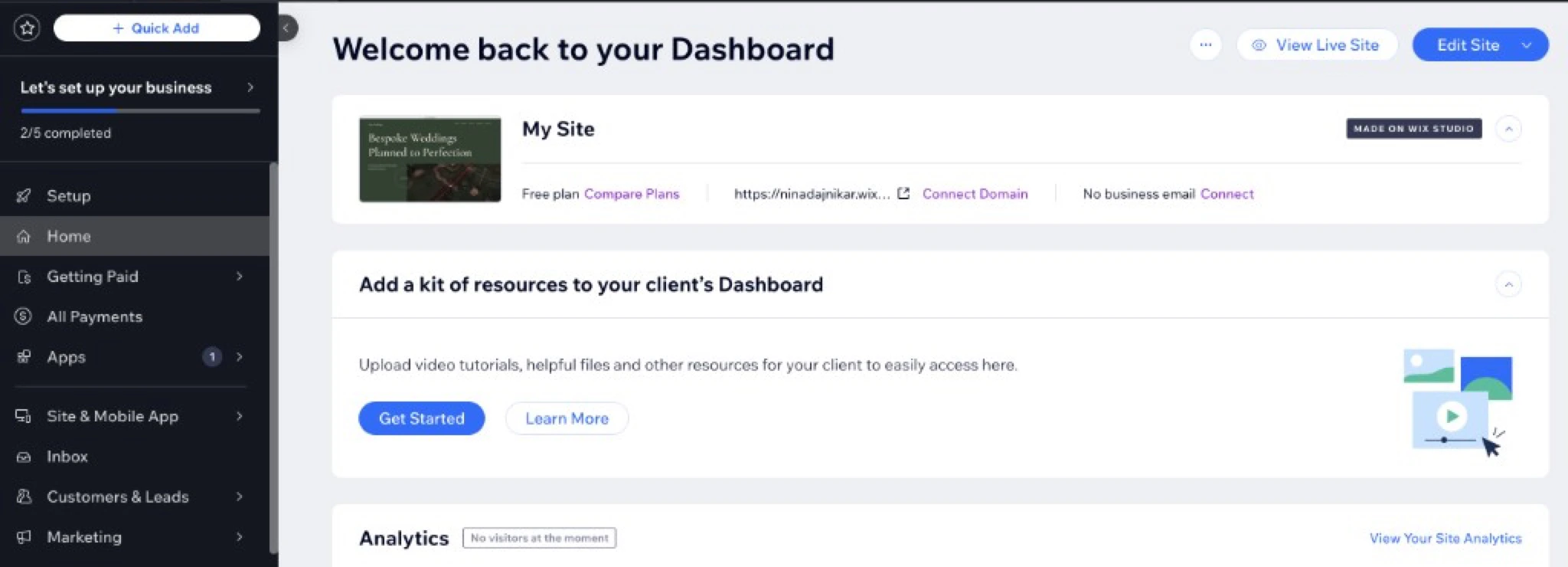
Step 2 — Enable Dev Mode
From the Wix editor top bar, go to Dev Mode and click Turn on Dev Mode to enable Velo.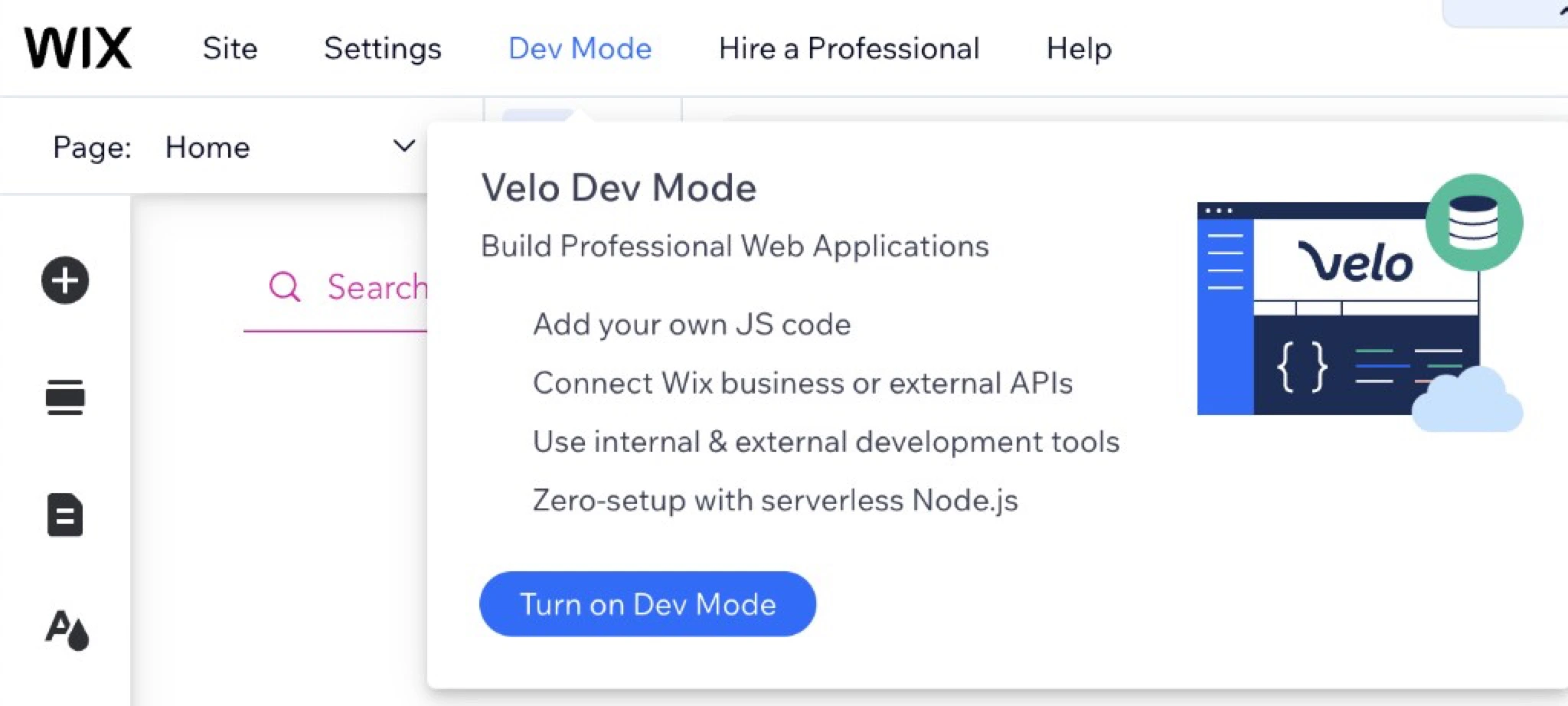
Step 3 — Plugin Directory Structure
Inside the Service Plugins directory, click the + (Add) icon and select Payment from the list.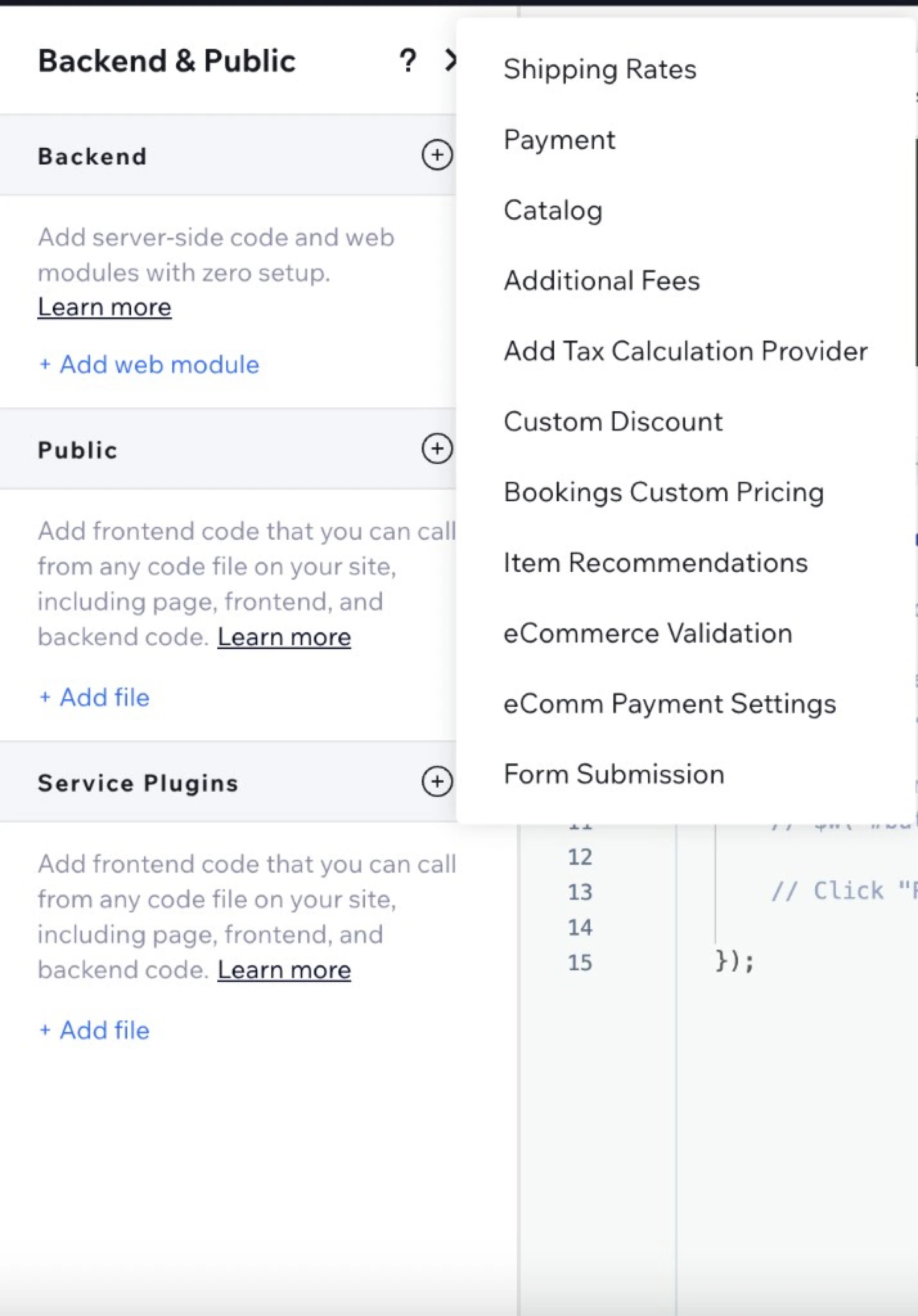
PayGlocal.jsPayGlocal-config.js
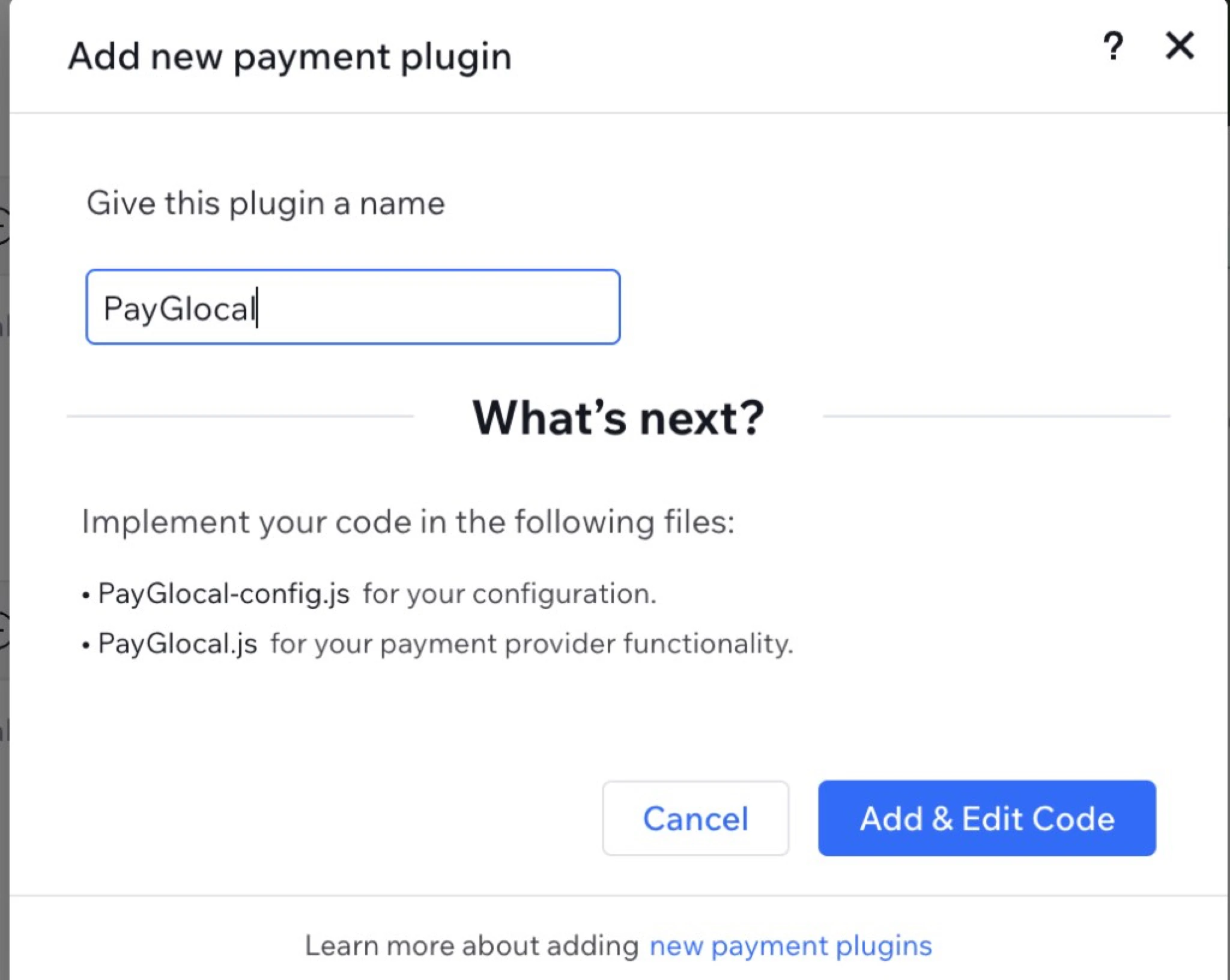
Replace the contents in both files by copying the code from the repository: PayGlocal-Plugin-Wix-Github
Step 4 — Create Backend Configuration Files
In the Backend section, create the following configuration files:payglocal-wrapper.jspayglocal-constants.jshttp-functions.js(if required)
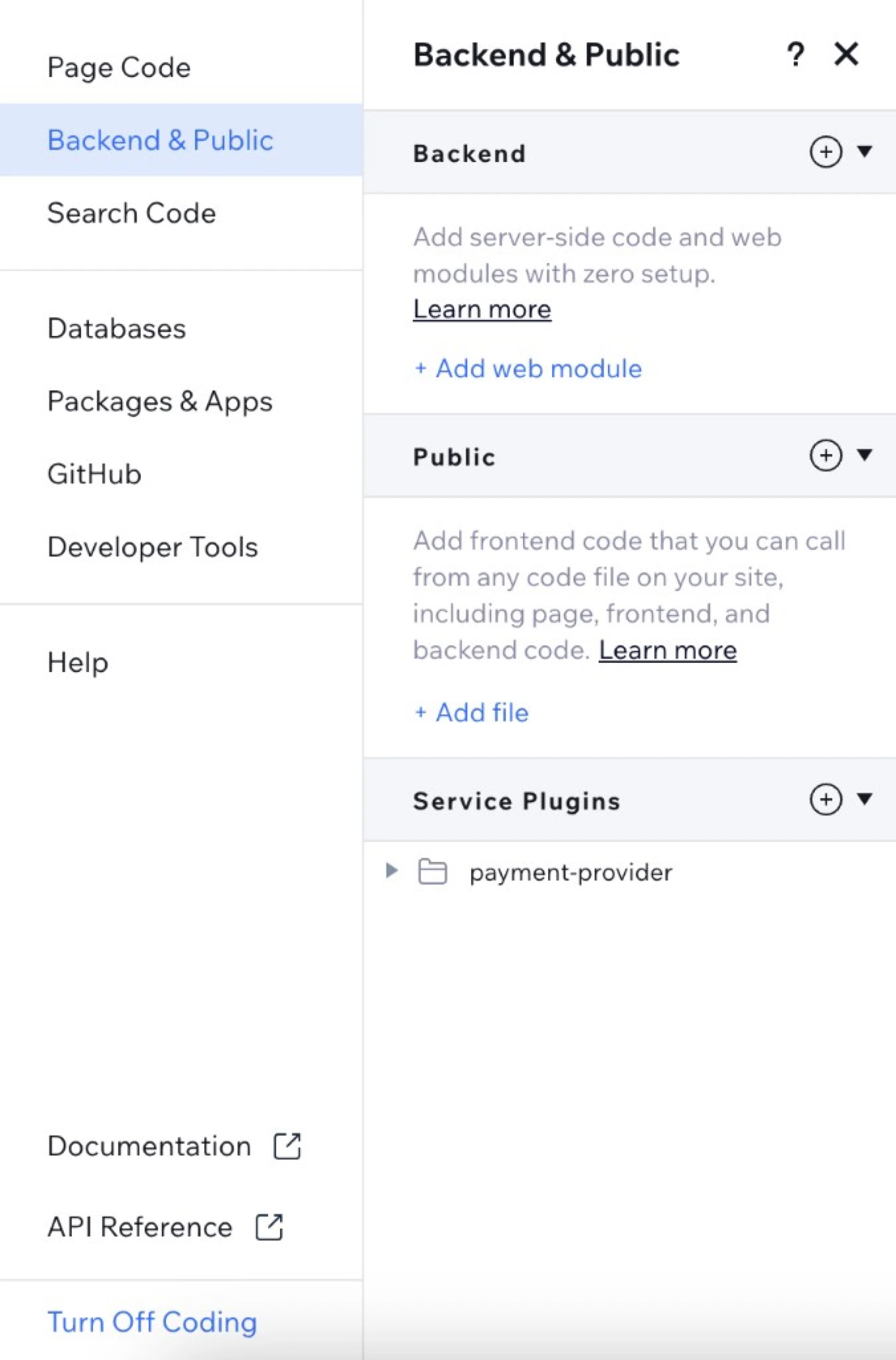
Replace the contents in the above files by copying the code from: PayGlocal-Plugin-Configuration-Wix-Github
Step 5 — Set Merchant-Specific Values
In thepayglocal-constants.js file, enter the values as below:
Also enter your Public Key in the designated field within the file.
Step 6 — Install npm Packages
Navigate to Packages & Apps in the Velo sidebar and install the following libraries via npm:josecrypto-js
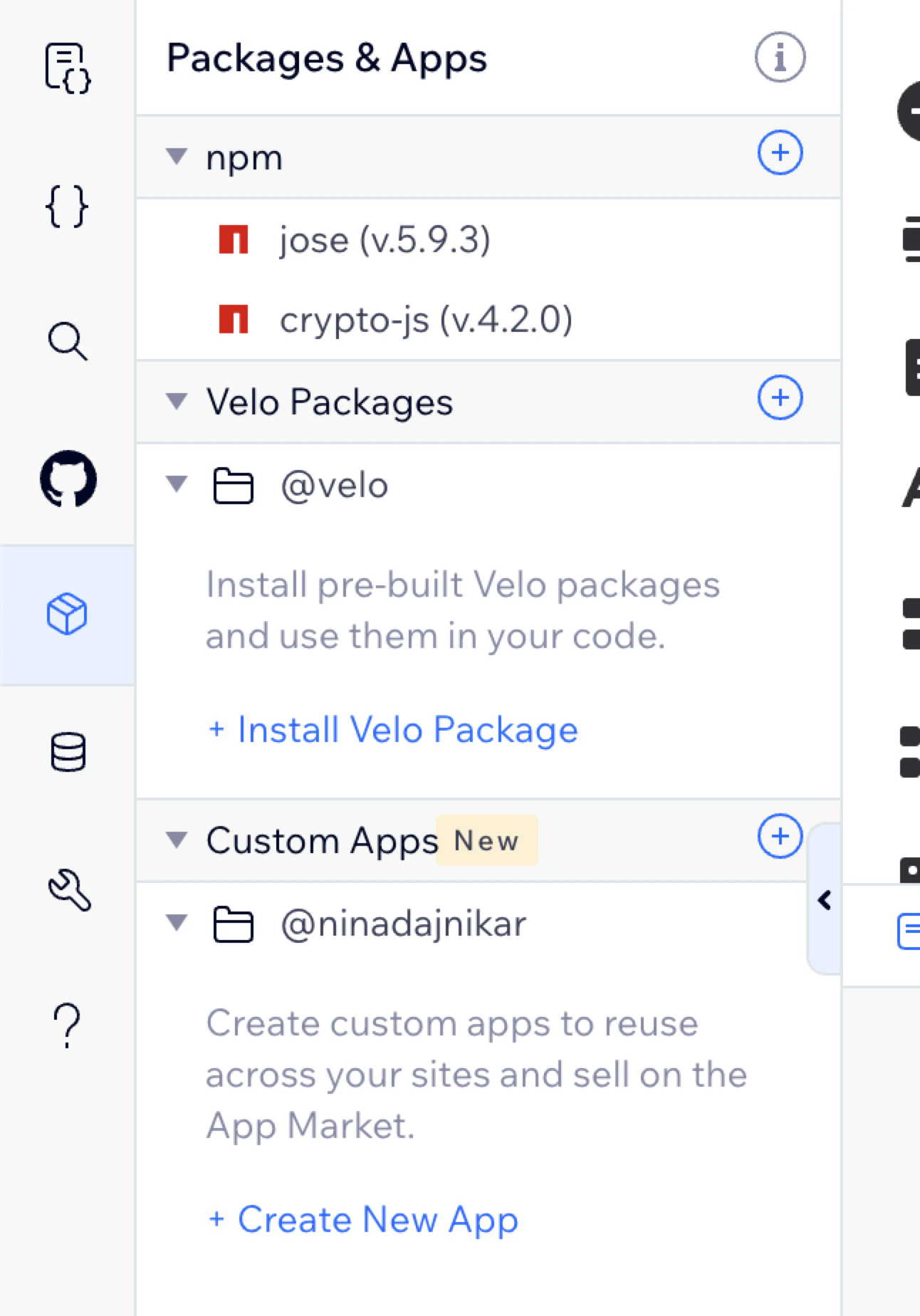
Step 7 — Publish the Website
Once all the changes are made, click the Publish button (top-right of the editor) to make PayGlocal live on your site.Step 8 — Verify Plugin on Payment Page
After publishing, PayGlocal will appear as a plugin under the Accept Payments section.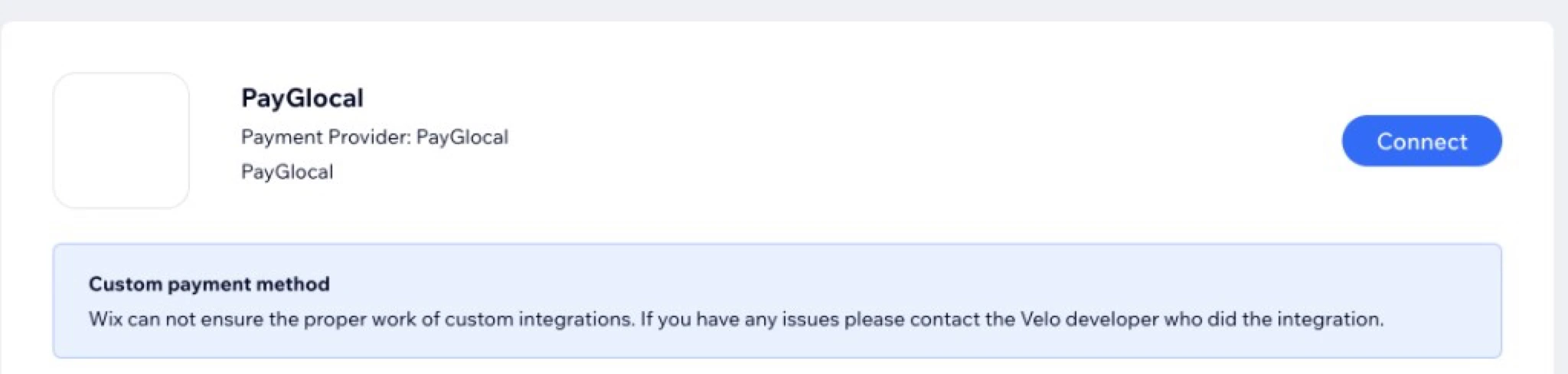
Activating PayGlocal for Payment Processing
To activate PayGlocal as a payment method:1
Locate the PayGlocal plugin
Once the website is published, ensure PayGlocal is visible as a payment plugin under Accept Payments.
2
Enter credentials and connect
Enter your Merchant ID and API Key in the relevant fields and click Connect.
3
Ready to process
Upon successful connection, PayGlocal will be ready to process payments.
Setup Successful — Once you have followed all the steps above, the PayGlocal payment gateway is successfully set up with your Wix store.
Customer Journey
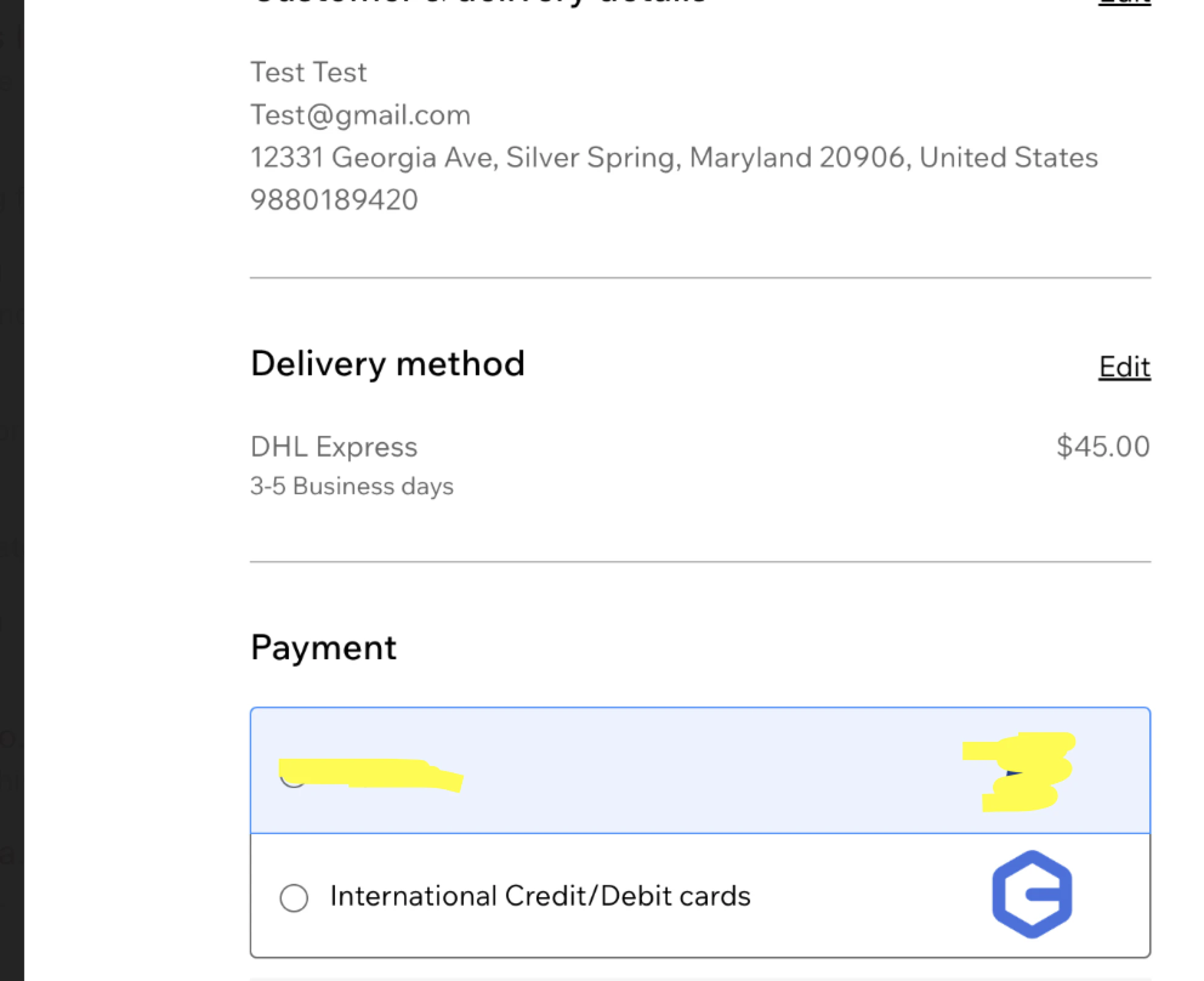
On the checkout page, PayGlocal will appear as a payment option. Upon selecting International Credit/Debit cards (PayGlocal), the customer will be redirected to the payment page to complete the transaction.