

When to Use This Guide
Read this page if you accept INR payments in India and route customers through PayCollect (hosted checkout). It explains the UPI rail at a product level. For request payloads, nested responses, and headers specific to UPI Intent, use UPI Intent.What Is UPI Here?
Think of UPI as “pay straight from a bank account using a phone app,” managed by India’s NPCI network. Your shopper does not type card numbers on your site. Instead, they land on a PayGlocal-hosted checkout: they pick UPI, scan a one-time QR (or approve in an app), enter their UPI PIN in their own bank app, and the debit happens on banking rails you never touch.How it gets paid
The payment is completed on PayGlocal’s hosted checkout. Your server starts the flow, PayGlocal shows the UPI experience, the customer approves the request in their bank app, and the UPI/NPCI network moves the money.- Your backend opens a PayCollect session for UPI and receives a hosted
redirectUrl. - The shopper chooses UPI on the PayGlocal page and generates a QR or follows the in-app approval path.
- They complete the payment in their bank app using UPI PIN; your merchant site never sees the PIN or bank credentials.
- NPCI/bank settlement moves the funds, and PayGlocal updates the hosted checkout with success or failure.
- PayGlocal then notifies your server via
merchantCallbackURL, and you can also verify the outcome by polling Get Status. - Actual settlement into your account happens later through your normal bank payout process.
This is the same product-level path as PayCollect: PayGlocal mediates the checkout; UPI apps move the money; your backend receives a trusted result.
What your customer sees (step by step)
Each step below matches what you see in the UAT screenshots (blue header, white body). In production the layout stays the same; only copy and branding may differ.Screenshots are from UAT. The Txn ID in the header is your
merchantTxnId so support can match a screenshot to a server log line.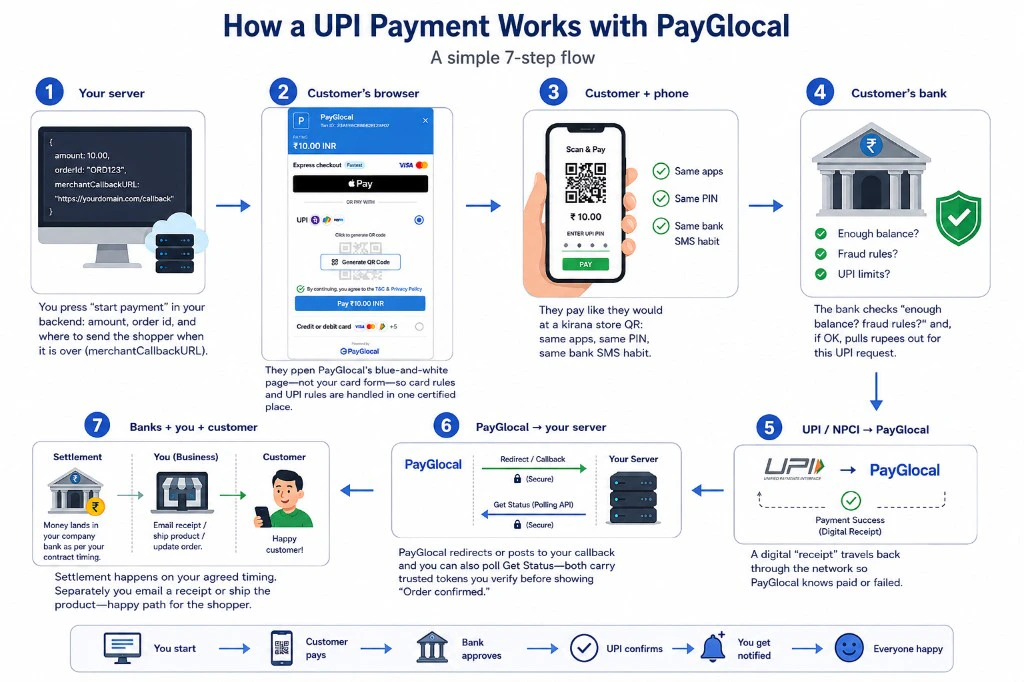
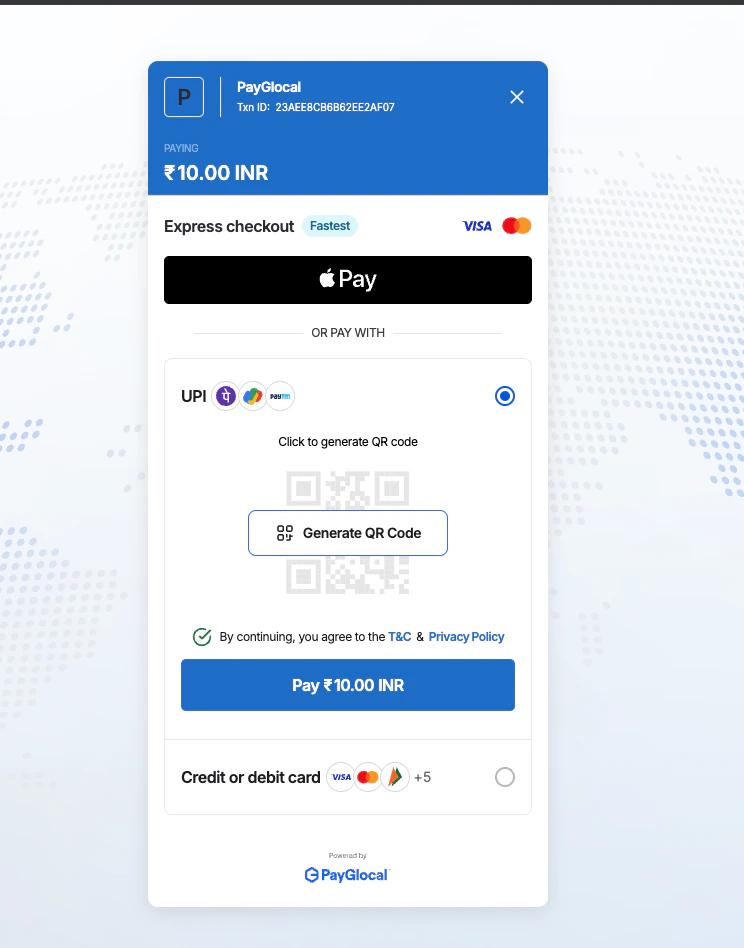
Step 1 — Pick “UPI” on the PayGlocal checkout
The shopper leaves your cart and opens PayGlocal’s page. They see the amount (for example ₹10.00 INR) and the transaction id in the header—that id is the reference you sent asmerchantTxnId. They tap UPI so the page knows they want a bank-app payment instead of only cards.
Step 2 — Tap “Generate QR Code” (or follow the on-screen UPI path)
On the same screen, PayGlocal asks them to create the QR. After they tap Generate QR Code, a fresh QR appears. A countdown timer may show how long that QR stays valid—if it expires, they generate a new one. (Some flows may deep-link into an app instead of QR; the idea is the same: PayGlocal prepares the collect request, the bank app finishes it.)Step 3 — Open PhonePe, Google Pay, Paytm, or any UPI app and pay
They scan the QR or complete the in-app approval flow. The money request shows the right amount; they confirm with their UPI PIN inside their bank’s app. Your website never sees that PIN.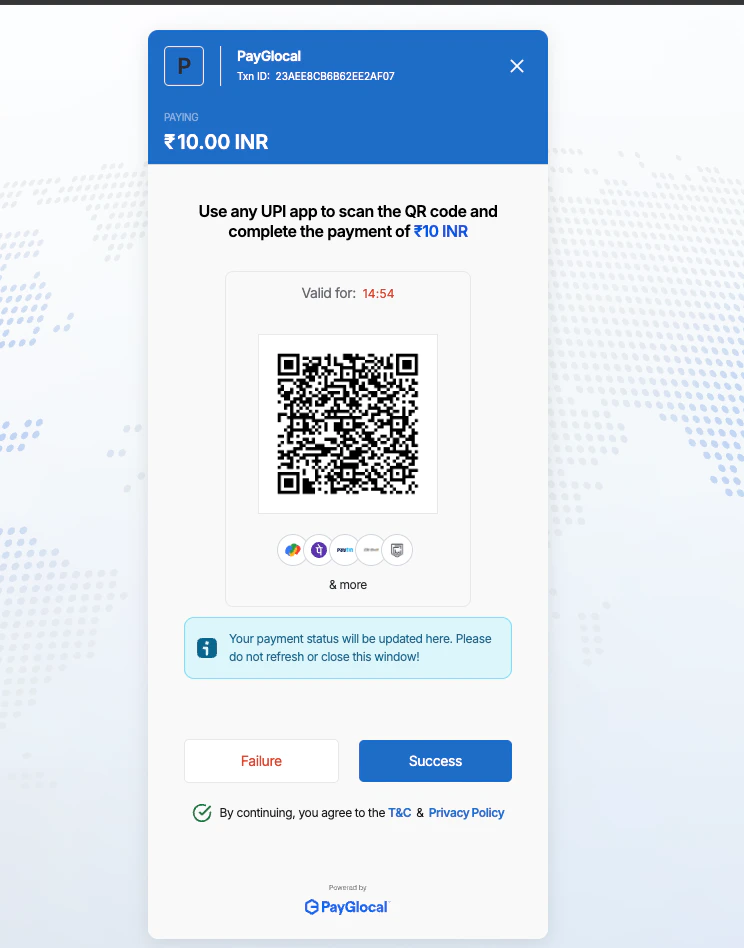
Step 4 — Wait on the PayGlocal page while status catches up
They should stay on this tab. The page shows a short note that payment status will update here—that is PayGlocal listening for the bank’s answer. In Sandbox / UAT you may also see big Success and Failure buttons: those only exist so developers can pretend a bank result and test yourmerchantCallbackURL without a real rupee moving.
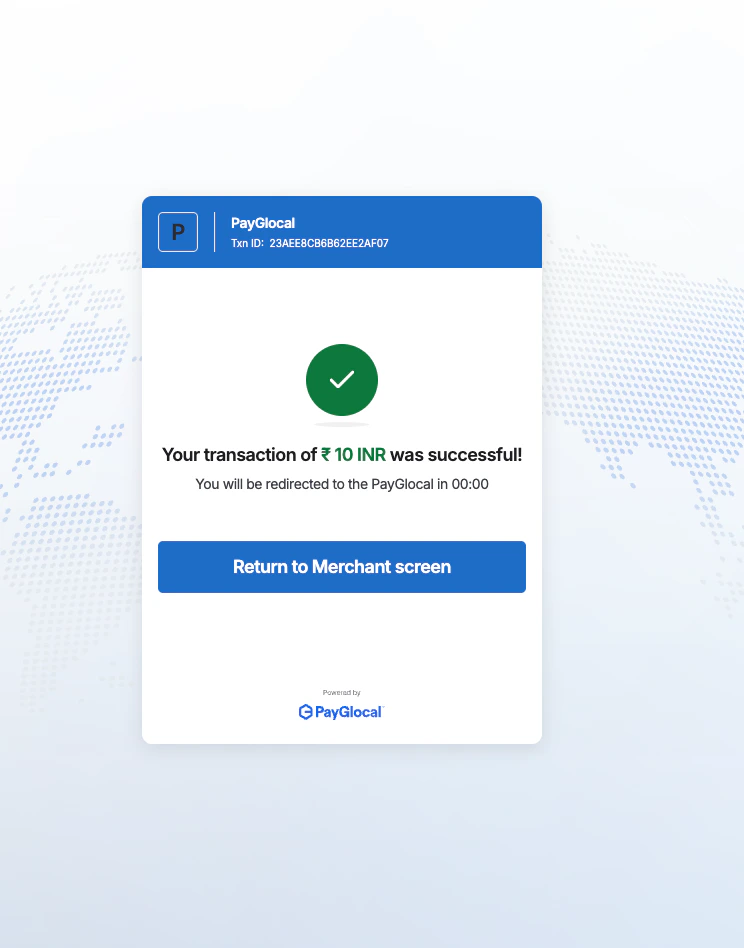
Step 5 — “Paid” screen, then back to your shop
When the payment succeeds, they see a green check and the amount in words they understand (“your transaction of … was successful”). After a short countdown, PayGlocal sends them to themerchantCallbackURL you configured—your site shows the order confirmation or “try again” page.
How money actually moves (simple picture)
Plain fact: the shopping cart in the browser does not hold cash. Only banks move rupees. PayGlocal’s job is to stand in the middle: start a safe session, show the checkout you saw above, talk to UPI / NPCI, then tell your servers what happened usinggid, merchantTxnId, callbacks, and status APIs.
Diagram — all seven beats on one line
The image is a timeline: read 1 → 6 across the top for what happens in a few seconds around the payment; step 7 is what accountants call settlement (often later in the day or next batch—not the same blink as “success” on screen).
Same story in everyday words
Why step 7 feels slower: authorization (steps 1–6) can be almost instant for the user, but moving cleared funds between banks for your payout is often a batch process—like clearing cheques overnight, not like handing cash across a counter.
Next Step
UPI Intent — payloads & responses
Minimal and enriched PayCollect requests, initiation vs post-success status payloads, headers, and callback notes.